
How to Clone Apps on iOS with ESign - Run Multiple Accounts Without Jailbreak
Learn how to run multiple instances of the same app on iPhone using ESign. Clone WhatsApp, Telegram, games, and more by modifying Bundle ID. No jailbreak required.
What Is App Cloning and Why Would You Need It?
App Cloning is a technique that modifies an app’s unique identifier (Bundle ID), making iOS treat it as a completely separate application. This lets you install multiple copies of the same app on one iPhone — each running independently with isolated data.
Who Is This For?
| Use Case | Example |
|---|---|
| Social Media | Run two WhatsApp or Telegram accounts simultaneously |
| Gaming | Keep your main and alt accounts online at the same time |
| Work-Life Balance | Separate work and personal messaging apps |
| Privacy | Use a secondary account for verification codes |
💡 Why clone instead of switching accounts? With cloned apps, you receive notifications from all accounts at once — no more missing important messages while logged into the wrong account.
What You’ll Need
Before you start, make sure you have:
- ✅ ESign installed and configured
- ✅ A valid signing certificate (personal or enterprise)
- ✅ The IPA file of the app you want to clone
Where to Get IPA Files
Don’t have an IPA? Here are common ways to obtain them:
- Decryption tools: Extract IPAs from apps you’ve purchased on the App Store
- Community resources: Find shared decrypted IPAs on forums or the ESign community
- Third-party sites: Some websites host popular IPAs for download
⚠️ Always verify IPA sources are trustworthy to avoid installing tampered or malicious apps.
Step-by-Step Guide: Clone Any App in 3 Steps
Step 1: Import the IPA into ESign
- Open ESign
- Go to the Library tab
- Locate the IPA file you want to clone
- If it’s not in your library, import it via:
- The Files app
- iTunes File Sharing
- Direct download from a URL
Step 2: Modify the Bundle ID
This is the key step that makes cloning work:
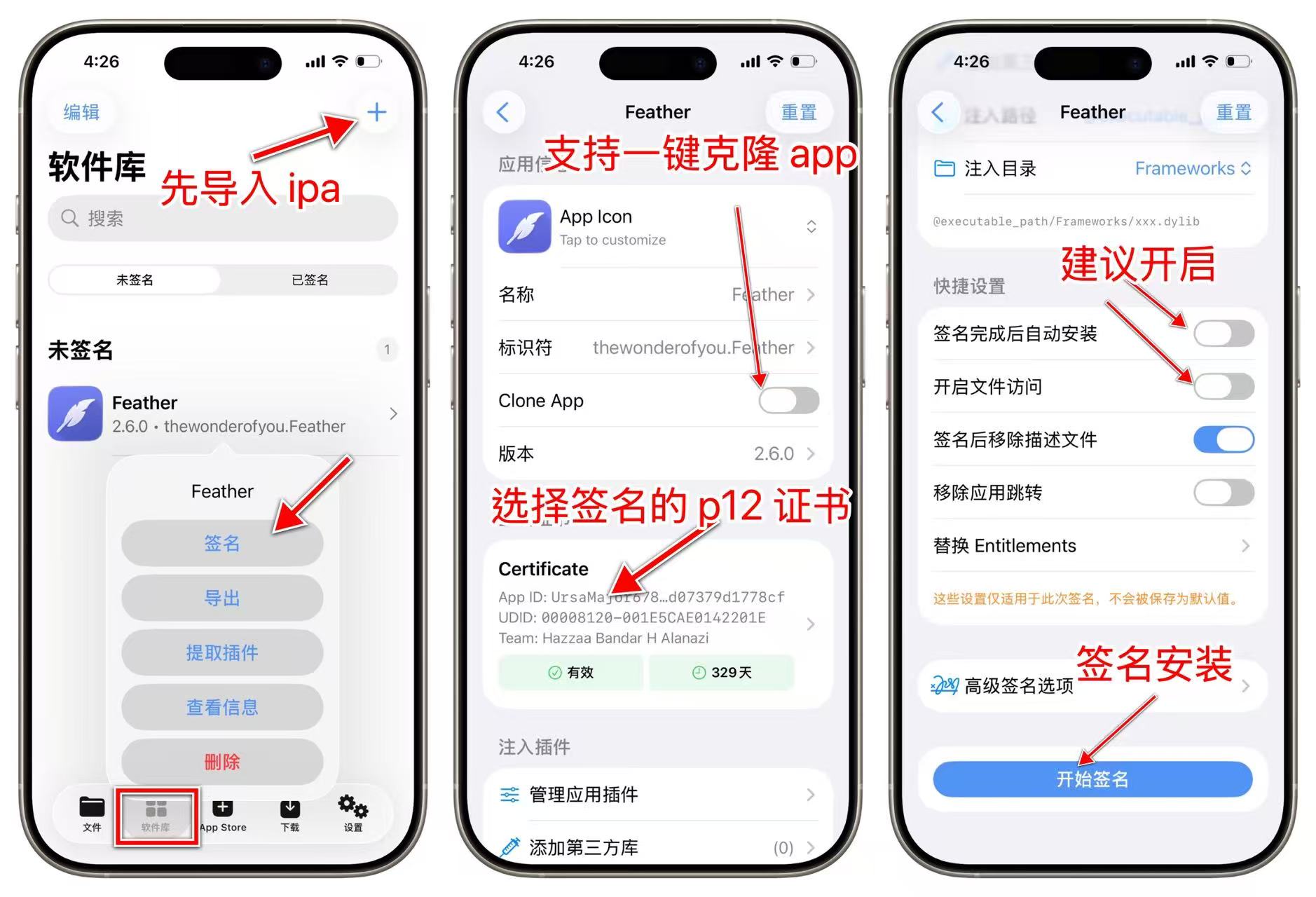
- Tap and hold (or tap) the IPA file, then select “Sign”
- In the signing options, find the “Bundle ID” field
- Add a custom suffix to the original Bundle ID:
| App | Original Bundle ID | Modified Bundle ID |
|---|---|---|
net.whatsapp.WhatsApp | net.whatsapp.WhatsApp.clone | |
| Telegram | ph.telegra.Telegraph | ph.telegra.Telegraph.work |
com.burbn.instagram | com.burbn.instagram.2 |
- Rename the app (optional but recommended) to tell them apart on your home screen:
- WhatsApp → WhatsApp 2 / WhatsApp Work
- Telegram → Telegram Alt
🚀 Quick tip: ESign has a “Clone App” toggle that automatically adds a random suffix to the Bundle ID and app name — saves you the manual work.
Step 3: Sign and Install
- Select your signing certificate
- Tap “Start Signing”
- Wait for the process to complete (usually just a few seconds)
- Tap “Install to Device”
- Go to Settings → General → VPN & Device Management and trust the certificate
- Return to your home screen — you’ll now see two separate app icons
Important Settings and Considerations
Recommended Signing Options
To preserve your data (like chat history or game saves) when your certificate expires, enable these options during signing:
| Option | What It Does |
|---|---|
| File Access | Lets you access app data through the Files app |
| iTunes File Sharing | Enables backup and restore via computer |
📦 With these enabled, you can migrate data from the old clone to a newly signed version — even after your certificate expires.
Risks to Be Aware Of
| Risk | Details | Recommendation |
|---|---|---|
| Account bans | Some apps detect cloning and may flag your account | Use conservatively; avoid suspicious behavior |
| Isolated data | Clones don’t share data with the original app | This is by design, not a bug |
| Certificate expiry | Personal certs last ~360 days; free enterprise certs often just 1–7 days | Renew before expiration |
| No auto-updates | Cloned apps won’t update via the App Store | Manually download new IPAs and re-sign |
After Installation
What to Expect
Once installed, your iPhone home screen will show two separate app icons:
- Each app can be logged into a different account
- Notifications are completely independent
- Both apps can run simultaneously
Pro Tips
- Create multiple clones: Just use different suffixes (
.clone1,.clone2, etc.) - Use Focus modes: Set up different notification rules for work vs. personal accounts
- Back up regularly: Use iTunes or the Files app to save important data
FAQ
Q1: Will cloning affect my original app?
No. The clone uses a different Bundle ID, so iOS sees them as completely separate apps. Your original app’s data and functionality remain untouched.
Q2: Will the cloned app receive push notifications?
Yes. As long as the app is properly signed and installed, push notifications work normally.
Q3: What happens when my certificate expires?
The cloned app will stop opening. You’ll need to sign it again with a new certificate. If you enabled “File Access” beforehand, you can migrate your data to the new version.
Q4: Can I clone any app?
Most apps work, but some may have limitations:
- Banking apps with strong device binding
- Apps using hardware-level security
- Apps with aggressive anti-cloning detection
Q5: Does a cloned app take up twice the storage?
Yes. Each clone is a full copy of the app and uses its own storage space.
Summary
With ESign’s Bundle ID modification feature, you can easily clone any app on iOS and run multiple accounts simultaneously — all without jailbreaking. The process is simple and takes just three steps.
Key takeaways:
- Modifying the Bundle ID is what makes cloning possible
- Enable File Access to preserve data across certificate renewals
- Be mindful of apps with anti-cloning detection
Questions or issues? Drop a comment or join the ESign community for help!